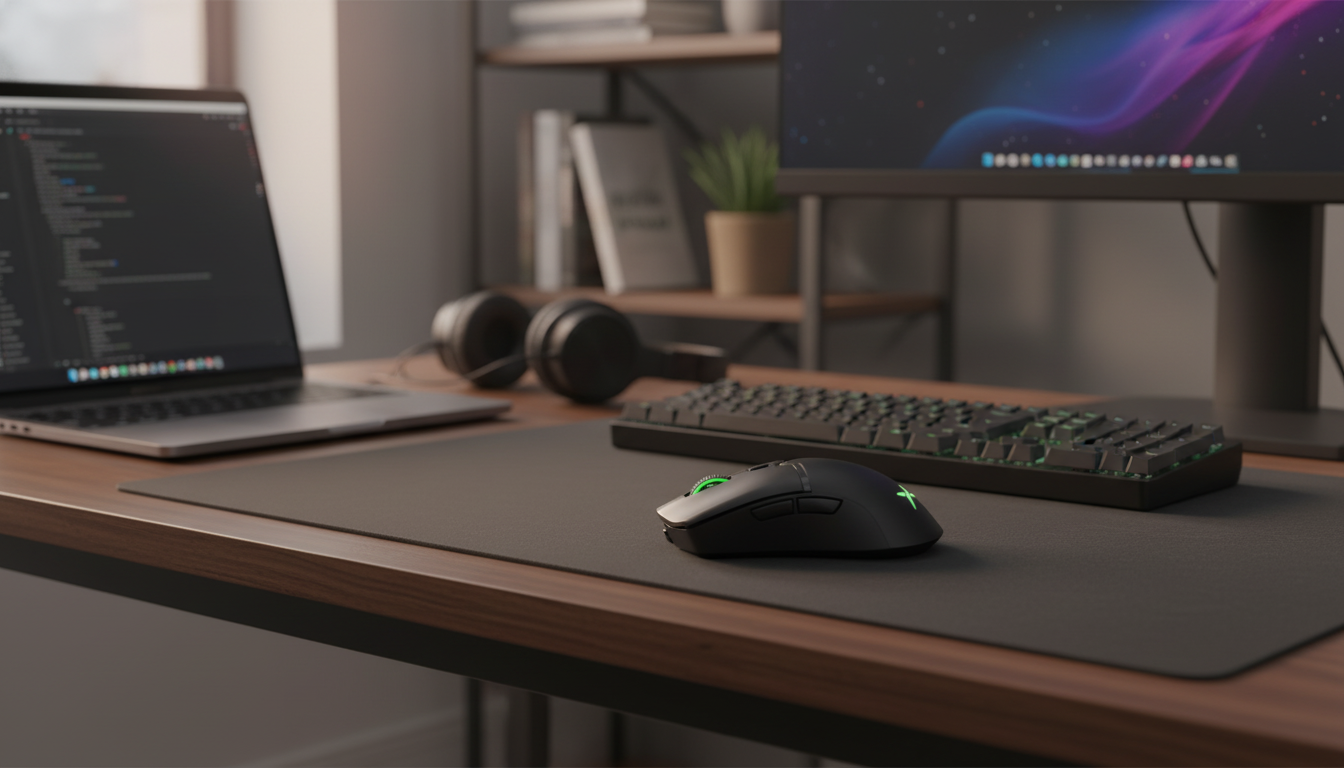
A single wireless gaming mouse can feel very different depending on whether it’s paired to a MacBook for creative work or a Windows PC for fast-paced play. The best cross-platform pick keeps setup simple, stays comfortable for long sessions, and delivers consistent tracking—while still giving you the RGB style many setups are built around. Below is a practical guide to choosing and using an RGB wireless gaming mouse across macOS and Windows, including a compatibility checklist and everyday tips for reliability.
Most modern wireless mice behave as standard USB HID devices, which means core functions—pointer movement, left/right click, and scroll—typically work right away on both macOS and Windows when connected through a USB receiver or Bluetooth (depending on the model). The difference usually shows up with “extras” like macro programming, per-app profiles, and deep RGB customization.
On macOS, basic performance is commonly plug-and-play. If you want advanced button mapping and your mouse doesn’t provide a dedicated macOS app, third-party tools can help, but it’s smart to start with app-level shortcuts first to keep your workflow stable. On Windows, optional software—when available—often unlocks the most control over lighting zones, polling, and macros, while still allowing driverless everyday use.
If you bounce between a Mac and PC daily, a simple strategy is to keep the USB receiver in a consistent location (like a monitor, dock, or front I/O) and use a secondary connection method for the other device when your mouse supports it. That reduces wear on ports and helps avoid the “where did I put the dongle?” routine.
| Feature | macOS (MacBook/iMac) | Windows (PC/Laptop) | Notes |
|---|---|---|---|
| Basic pointer + click | Yes | Yes | Typically plug-and-play |
| Scroll wheel | Yes | Yes | Natural vs standard scroll direction can be changed in OS settings |
| Side buttons | Usually | Yes | May require mapping software for custom actions on macOS |
| RGB lighting | Varies | Varies | May use onboard modes or optional software |
| Macro/advanced remapping | Varies | Common | Depends on software support for each OS |
For official OS pairing steps and troubleshooting, Apple’s Bluetooth guidance and Microsoft’s Windows Bluetooth help are solid references: Apple Support and Microsoft Support.
Wireless performance depends on connection type and how you place the receiver. For desk gaming, a 2.4GHz USB receiver is often the go-to choice because it tends to provide consistent responsiveness and stable tracking. Bluetooth can be excellent for travel—especially on laptops with limited ports—but behavior can vary more depending on OS version, nearby wireless congestion, and power management settings.
DPI isn’t just a number—it’s how quickly the cursor responds to your hand movement, and it can feel dramatically different between a high-resolution Mac display and a high-refresh PC gaming monitor. A convenient DPI toggle helps you switch from precise, slow control (timeline edits, design work, spreadsheets) to faster turns in-game without digging through settings.
For more consistent aim and less frustration, keep your OS pointer speed at a steady baseline and tune sensitivity inside each game. Constantly changing both OS and in-game settings can make muscle memory harder to build. If tracking ever stutters, clean the sensor area and mouse feet, then test on a different surface (cloth pad vs hard pad) to isolate the issue.
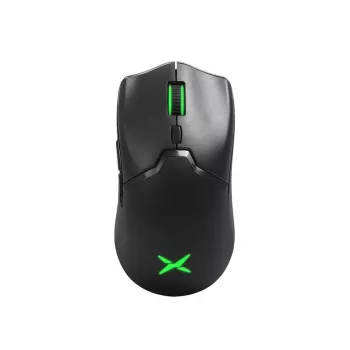
If you want one mouse that can cover gaming, school, and general productivity across macOS and Windows, the RGB Wireless Gaming Mouse for Mac and PC is built for that cross-platform routine. Its wireless design helps keep a clean desk setup while staying responsive for everyday tasks and play, and the RGB styling adds a gaming-forward look that still fits home and office environments.
| Item | Detail |
|---|---|
| Name | RGB Wireless Gaming Mouse for Mac and PC |
| Price | $56.51 |
| Availability | In stock |
| Product page | View product |
Most mice that connect via a standard USB receiver (USB HID) or Bluetooth work on both macOS and Windows for basic movement, clicking, and scrolling. If advanced remapping or RGB control matters, confirm software support for each OS before buying.
Often yes for basic pointing and clicking, especially if it supports Bluetooth or uses a USB receiver. Apple-specific gestures and certain configuration features may not carry over to Windows.










Leave a comment