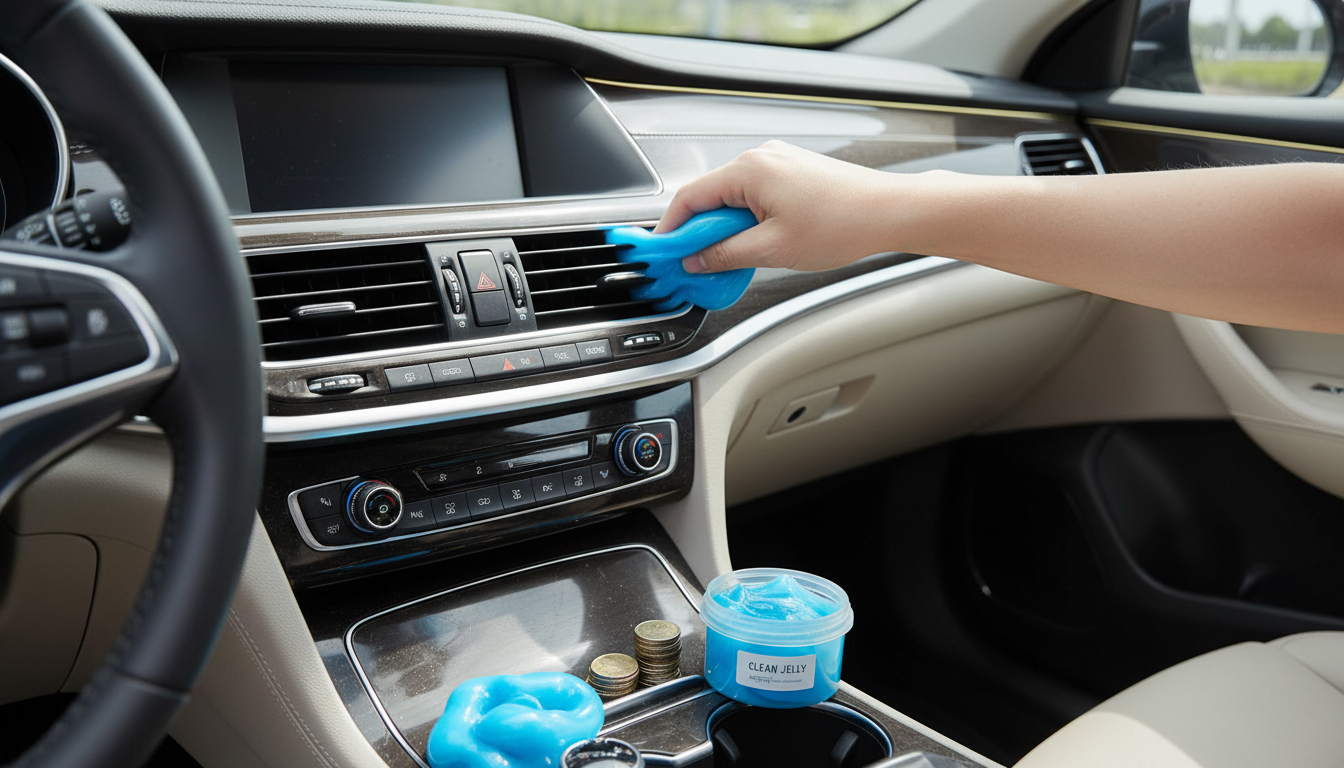
Cleaning gel is a reusable, putty-like cleaner designed to lift dust, crumbs, and fine debris from tight spaces where cloths and brushes struggle—such as keyboard gaps, laptop vents, car air vents, cup holders, and console seams. Used correctly, it picks up particles by gentle pressing and peeling, helping surfaces look cleaner without pushing dirt deeper into crevices. This makes it an excellent choice for using a Cleaning Gel for Cars. When considering options for Cleaning Gel for Cars, it’s essential to recognize its versatility and efficiency in achieving a thorough clean.
If you’re cleaning electronics, it’s also smart to follow the device maker’s care guidance. See Apple Support’s cleaning recommendations and Microsoft’s Surface cleaning and care guide for safe general practices.
For car interiors, cleaning gel shines when it’s used after you’ve already loosened the bigger grit. That order matters: first free the debris, then lift it off the surface.
Utilizing a Cleaning Gel for Cars can significantly enhance your car cleaning routine. This product is specifically designed to target those hard-to-reach areas that often accumulate dust and debris. Regular use of Cleaning Gel for Cars will ensure your vehicle remains clean and hygienic, providing a pleasant driving experience.
When you’re working around glossy trim or infotainment bezels, keep the gel’s contact brief and avoid twisting motions. A slow peel is usually cleaner than a quick pull, especially along tight seams.
Keyboards and laptops have tighter tolerances than most car surfaces, so the safest approach is a light touch and a strict “no packing into openings” rule.
For the best results, always keep a Cleaning Gel for Cars handy in your cleaning toolkit. Its unique formulation allows it to adapt to various surfaces, making it indispensable for car enthusiasts and everyday users alike.
Cleaning gel is best when you want debris removed (not just moved) from hard-to-wipe textures and narrow gaps. For a truly clean finish, it’s often part of a small “toolkit” rather than the only step.
| Method | Best for | Limitations |
|---|---|---|
| Cleaning gel | Key gaps, buttons, seams, textured plastics | Not for wet/greasy messes; avoid ports and delicate openings |
| Microfiber cloth | Dashboards and flat surfaces | Doesn’t reach tight crevices well |
| Soft detailing brush | Loosening dust in vents and trim lines | May scatter dust unless followed by pickup |
| Compressed air | Vents and deep crevices | Can push debris deeper; requires careful handling |
The effectiveness of Cleaning Gel for Cars grows with regular usage. By consistently incorporating it into your cleaning routine, you can maintain a dust-free environment in your vehicle.
Yes—on dry dust and crumbs lodged between keys, cleaning gel can lift debris with a light press-and-lift motion. It’s less effective on sticky grime or oily buildup and shouldn’t be pushed into openings.
Power off and unplug the laptop, then tip it slightly to let loose debris fall away. Use a soft brush or gentle air to loosen dust, follow with light press-and-lift gel touches between keys, and finish with a dry microfiber cloth on surrounding surfaces.
Remember, when applying Cleaning Gel for Cars, always follow the manufacturer’s instructions for optimal performance and results.
Using Cleaning Gel for Cars not only helps keep your vehicle clean but also extends the life of your interior surfaces by preventing the buildup of dirt and grime.
Consider adding a Cleaning Gel for Cars to your cleaning arsenal, ensuring that every crevice is attended to with care.
A great tip is to use Cleaning Gel for Cars right after washing your vehicle, as it allows for a thorough refresh of all surfaces.












Leave a comment