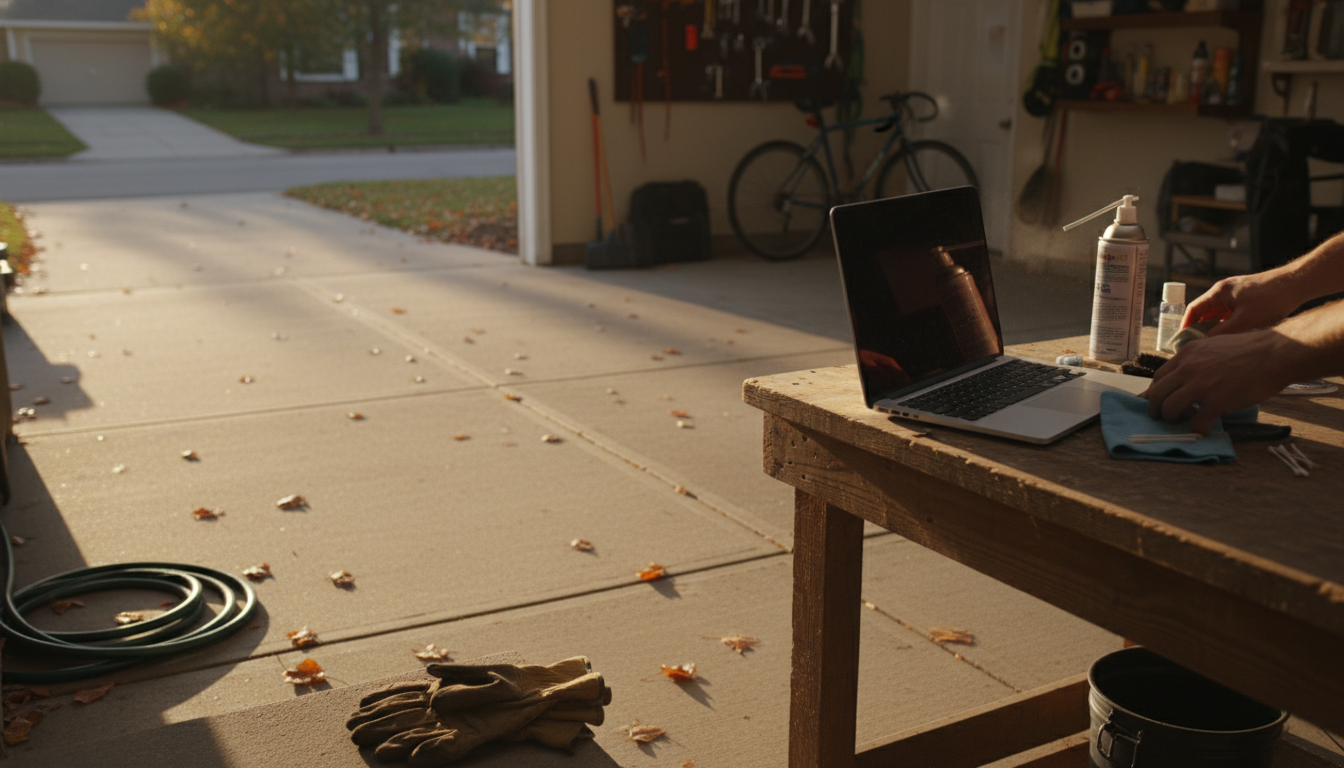
Cleaning dust off a laptop keyboard is easiest when you work from “loose debris” to “stuck-on grime,” using gentle tools that won’t force particles deeper into the keys. Start by powering down your laptop, unplugging it, and (if possible) removing any external accessories. If your model has a removable battery, take it out.
Close the lid, turn the laptop upside down over a trash can, and gently tap the bottom. Then open the lid and hold the laptop at a slight angle so gravity can help dust fall away rather than settle back between keys.
Use short bursts of compressed air while holding the can upright. Aim diagonally across the keyboard, moving row by row. Keep the nozzle a few inches away to avoid condensation, and don’t spray continuously—quick bursts reduce the chance of driving dust deeper under the keycaps.
A soft, clean brush (like a small keyboard brush or makeup brush) works well for sweeping dust from key edges, hinge areas, and the function-row crevices. Brush toward the keyboard’s edge so particles exit instead of redistributing.
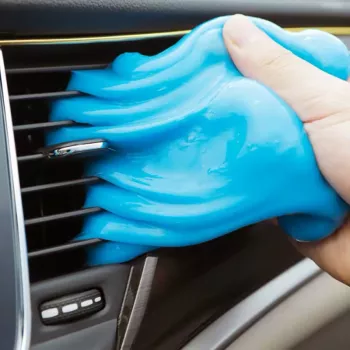
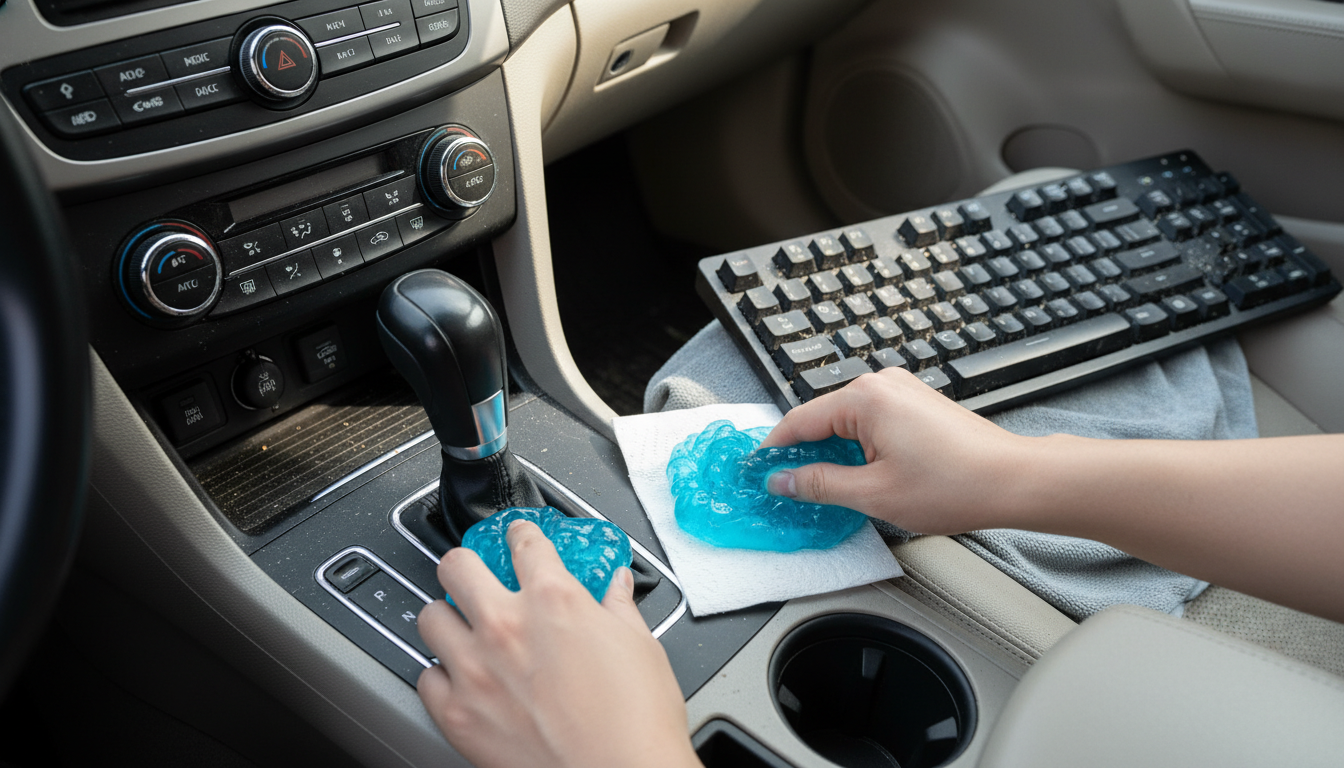
For stubborn dust trapped between keys, a cleaning gel can conform to the keyboard’s contours and lift particles out. Press it lightly onto the keys, then lift straight up—don’t rub aggressively. If you want a deeper walkthrough on gel use and best practices, follow this guide: https://gskbuy.com/guide-cleaning-gel-cars-laptops-keyboards-dust-tips/.
Finish with a microfiber cloth lightly dampened with 70% isopropyl alcohol (never dripping). Wipe key tops and the palm rest, then let everything dry fully before powering back on.
Yes—use a microfiber cloth lightly dampened with 70% isopropyl alcohol and wipe the key tops and surrounding areas. Avoid spraying liquid directly onto the keyboard and let it dry completely before turning the laptop on.










Leave a comment